
How to fix Rain WiFi login issues is a common concern among South Africans who struggle to access their Rain accounts, connect to their routers, or manage their internet services. Whether you have forgotten your password, cannot open the Rain login page, or keep receiving an incorrect password message, understanding the cause can help you resolve the problem quickly.
Rain is a South African telecommunications provider offering 4G and 5G connectivity, including home WiFi services. Customers use their online accounts to manage subscriptions, payments, and other services. However, login problems can sometimes prevent them from accessing important account information.
The good news is that many Rain WiFi login issues can be resolved without technical assistance. This guide explains how to sign in, reset your Rain password, troubleshoot browser errors, fix WiFi connection problems, and contact Rain customer support when necessary.
How to Fix Rain WiFi Login Issues: Step-by-Step Guide
Before attempting complicated troubleshooting, identify whether the problem involves your Rain online account or your WiFi connection. These are two different systems, and each requires a different solution.
Step 1: Open the Official Rain Login Page
The first step is to access the correct login website. Rain customers can sign in through the official Rain login page.
- Open Google Chrome, Safari, Microsoft Edge, or another updated browser.
- Visit https://www.rain.co.za/accounts/sign-in.
- Enter the email address associated with your Rain account.
- Type your account password.
- Click the “sign in” button.
- Wait for the website to process your details.
If your credentials are correct and the website is functioning normally, you should be able to access your account.
If you are unfamiliar with the process, Quick Read also provides a detailed Rain login guide for South African users explaining how to access and manage an account.
Step 2: Check Your Rain Login Details
Incorrect login information is one of the first things to investigate when you cannot access your account.
Check that you are entering the correct email address and password. Watch for typing mistakes, unnecessary spaces, and incorrect capital letters. Passwords are case-sensitive, meaning uppercase and lowercase letters must match exactly.
If your browser automatically fills in an old password, delete the saved entry and type your current password manually.
Customers who recently changed their email address should also confirm which address is registered with Rain. Your current personal email address may not necessarily be the one linked to your account.
Step 3: Reset Your Rain WiFi Login Password
If you cannot remember your account password, resetting it is usually the simplest solution.
Rain provides an official password reset page where customers can request assistance.
- Visit https://www.rain.co.za/accounts/forgot-password.
- Enter the email address registered with your Rain account.
- Click the “submit” button.
- Check your email inbox for password reset instructions.
- Follow the instructions provided by Rain.
- Set a new password if prompted.
- Return to the login page and sign in using your updated credentials.
Choose a password that is difficult to guess and avoid reusing passwords from other websites.
Remember that resetting your Rain account password does not automatically change your router’s WiFi password. These are separate credentials.
How to Fix Rain WiFi Login Issues When the Password Reset Email Does Not Arrive
Sometimes customers request a password reset but do not receive the expected email. This does not necessarily mean their account has been deleted or suspended.
Check Your Spam or Junk Folder
Password reset messages can occasionally be filtered into spam, junk, or promotional folders. Search your inbox for messages associated with Rain and check whether the email was automatically moved elsewhere.
Confirm Your Registered Email Address
Make sure you entered the email address associated with your account. If you have several email addresses, consider which one you originally used when registering for Rain services.
Request Another Reset Email
If the message does not arrive, return to the official password reset page and submit another request. Avoid repeatedly submitting requests within a short period, as this may create confusion if multiple reset messages arrive.
Contact Rain Customer Support
If you no longer have access to your registered email address, contact Rain for account recovery assistance. The provider may need to verify your identity before making changes to your account.
How to Fix Rain WiFi Login Issues When the Website Is Not Working
Not every login failure is caused by an incorrect password. Browser settings, unstable internet connectivity, or temporary website problems can also prevent successful sign-in.
1. Check Your Internet Connection
Try opening another website to confirm that your internet connection is working.
If other websites also fail to load, the problem may involve your connection rather than the Rain login platform.
You can test the login page using another available connection, such as mobile data from a different network. This helps determine whether the issue is specific to your Rain WiFi connection.
2. Clear Your Browser Cache and Cookies
Stored browser data can sometimes interfere with website functionality.
For Google Chrome users:
- Open Chrome.
- Go to Settings.
- Find Privacy and security.
- Choose the option to delete browsing data.
- Select cached images and files, and cookies if necessary.
- Delete the selected data.
- Restart the browser and reopen the Rain login page.
Clearing cookies may sign you out of other websites, so consider trying a private browsing window first.
3. Try Another Browser or Device
If the Rain website does not work in Chrome, try Safari, Firefox, or Microsoft Edge. You can also switch between your smartphone, tablet, and computer.
If the page works on another device, investigate the original device’s browser, network settings, extensions, and software updates.
4. Disable VPN Services Temporarily
Some VPN configurations, privacy extensions, or network filters can interfere with website authentication.
If you use a VPN, disconnect temporarily and try accessing the Rain login page again. Only do this on a network you trust.
5. Check for Temporary Website Problems
If the login page fails on multiple devices and different internet connections, the problem may be on the website’s side.
In such cases, avoid making unnecessary changes to your account or router settings. Try again later or contact Rain to determine whether there is a known service issue.
How to Fix Rain WiFi Login Issues on Your Router
Some customers search for Rain WiFi login solutions when their phones, laptops, or smart TVs cannot connect to their home WiFi network.
It is important to distinguish between the Rain account password and the WiFi password used to connect devices to your router.
Check Your Rain WiFi Password
Your WiFi password controls access to your local wireless network. It is different from the password used on Rain’s website.
To resolve a WiFi password error:
- Locate the WiFi network name associated with your Rain router.
- Check the router label or original setup information for its WiFi credentials.
- Open the WiFi settings on your phone or computer.
- Select the correct network name.
- Enter the WiFi password carefully.
- Wait for your device to establish a connection.
If you previously changed the WiFi password, use the updated password rather than the original one printed on the router.
Forget the WiFi Network and Reconnect
Devices sometimes retain outdated wireless passwords, causing repeated connection failures.
On most Android phones and iPhones, you can open WiFi settings, select the relevant network, and choose the option to forget it.
Reconnect to the network and enter the correct password. This allows your device to establish a fresh connection.
Restart Your Rain Router
Restarting a router can resolve temporary connectivity problems.
- Switch off your Rain router using its power button, if available, or disconnect its power supply.
- Wait approximately 30 seconds.
- Reconnect the power supply.
- Allow the router to complete its startup process.
- Reconnect your phone or computer to the WiFi network.
Do not press the factory reset button during a normal restart. A factory reset may erase customised settings and should only be performed when specifically required.
Check Your Router’s Signal and Placement
Poor signal quality can make Rain WiFi unreliable even when your login details are correct.
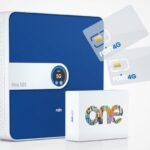
Rain’s official frequently asked questions recommend placing its home WiFi router upright in an open area, preferably near a window. The provider also advises avoiding cupboards, floors, thick walls, and large appliances that could affect reception.
For customers living in areas such as Johannesburg, Pretoria, Durban, and Cape Town, actual signal quality can vary between buildings and even between rooms within the same property.
Consider moving your router to a suitable location within your home and checking whether the connection improves.
Rain WiFi Login Problems: Common Errors and Solutions
The following table summarises common problems and practical troubleshooting steps.
| Problem | Possible Cause | Recommended Solution |
|---|---|---|
| Incorrect password message | Wrong or outdated account password | Check the credentials or use the official password reset page. |
| Rain login page not loading | Browser, connectivity, or website issue | Test another browser, device, or internet connection. |
| Password reset email missing | Incorrect email address or email filtering | Check spam folders and confirm your registered email. |
| WiFi password rejected | Incorrect wireless network password | Use the correct router WiFi credentials. |
| Connected to WiFi but no internet | Signal, account, network, or router problem | Restart the router and check your service status. |
| Unable to access router settings | Wrong router administration credentials | Consult the router’s documentation or Rain support. |
How to Fix Rain WiFi Login Issues Caused by Account or Payment Problems
In certain cases, customers may successfully connect to their WiFi network but still be unable to browse the internet.
One possible reason is an outstanding payment or a service restriction. Rain has an official payment information page explaining that an account with an outstanding amount may be taken offline until the payment issue is resolved.
If you suspect a billing problem:
- Sign in to your Rain account using an alternative internet connection if necessary.
- Check your available account and payment information.
- Look for outstanding balances or service notifications.
- Follow the available official payment instructions.
- Contact Rain if the account status does not reflect a recent payment.
Use only Rain’s official website or authorised payment channels when settling your account.
It is also worth checking whether your service is fully activated and whether your current package supports the connection you are attempting to use.
How to Fix Rain WiFi Login Issues Related to 4G and 5G Connectivity
Rain operates mobile broadband services that depend on network availability and signal conditions.
If your router shows a WiFi connection but internet access remains unavailable, investigate the network connection before assuming your login details are incorrect.
Check Rain Network Coverage
Visit the official Rain website to review the available home internet services and coverage information for your location.
Coverage and actual performance are not necessarily identical. Building materials, nearby obstructions, network congestion, and router placement may influence your experience.
Rain also notes in its service terms that network interruptions can occur during electricity outages and that network performance is provided on a best-effort basis.
Check Whether Your Rain Service Is Activated
If you recently purchased a Rain SIM or service, confirm that the required activation process has been completed.
South African customers may also need to complete registration requirements under the Regulation of Interception of Communications and Provision of Communication-Related Information Act, commonly known as RICA.
For additional guidance, read Quick Read’s article on how to activate a Rain SIM card in South Africa.
Understand Your Rain WiFi Package
Different Rain products may have different coverage requirements, speeds, router arrangements, and usage conditions.
For example, Rain’s current home WiFi information explains that its unlimited 5G home service operates through supported Rain-supplied routers and is associated with an approved service address.
Customers should check the terms of their own package rather than assuming that every Rain product works in the same way.
You can learn more about the service by reading Quick Read’s overview of Rain WiFi in South Africa. However, always confirm current packages, pricing, and restrictions directly with Rain, as older articles may contain outdated product information.
How to Contact Rain Customer Support for WiFi Login Issues
If you have tried the troubleshooting methods above without success, contacting Rain is the next step.
According to Rain’s official terms and contact information, its Customer Engagement Centre can be reached on 081 610 1000.
You can also visit the official Rain website to access the askrain support service.
Before contacting support, prepare the following information:
- Your registered Rain email address.
- The mobile number associated with your account, if applicable.
- A description of the login error.
- The type of Rain service or router you are using.
- The troubleshooting steps you have already attempted.
- The approximate time the problem started.
This information can help support staff understand your issue more efficiently.
For further assistance, Quick Read has published a guide explaining how to find the Rain contact number in South Africa.
Never disclose your password or a one-time verification code to someone claiming to be a support representative.
How to Prevent Rain WiFi Login Issues in Future
Although login problems cannot always be prevented, a few practical habits can reduce their frequency.
Use a Strong, Unique Password
Create a password that is not used for any other online account. A reputable password manager can help you store login details securely without needing to remember every password.
Keep Your Registered Email Address Updated
Make sure you can access the email account associated with your Rain service. This is particularly important when you need to recover a forgotten password.
Keep Your Browser and Devices Updated
Install available operating system and browser security updates. Updated software can reduce compatibility problems and help protect your account.
Avoid Suspicious Login Links
Always check the website address before entering your Rain account credentials.
For normal account sign-in, use the official rain.co.za domain. Be cautious of unexpected SMS messages, emails, or WhatsApp messages directing you to unfamiliar websites.
Keep Account and Router Passwords Separate
Do not confuse your Rain account password with your router’s WiFi password or administration password. Keeping these credentials separate improves security and makes troubleshooting easier.
FAQs
1. How do I fix Rain WiFi login issues if I forgot my password?
Visit https://www.rain.co.za/accounts/forgot-password, enter your registered email address, and submit a password reset request. Follow the instructions sent by Rain to recover access to your online account. If you cannot access your registered email, contact Rain customer support.
2. Why is my Rain WiFi login not working even with the correct password?
Your login may fail because of outdated browser data, an incorrect registered email address, a temporary website problem, or another account-related issue. Try a private browsing window, test another device, and check whether the official login page loads through a different internet connection.
3. How can I fix Rain WiFi login issues on my phone?
Open the official Rain login page in an updated mobile browser and enter your registered email address and password. If it does not work, clear relevant browser data or try another browser. If your phone cannot connect to the router’s WiFi network, forget the network and reconnect using the correct WiFi password.
4. Can I fix Rain WiFi login issues without contacting customer support?
Yes. Many problems can be resolved by correcting login details, resetting your password, clearing browser data, restarting your router, or reconnecting to the WiFi network. However, account recovery issues, unexplained service restrictions, and persistent network problems may require assistance from Rain.
5. What is the Rain WiFi login website in South Africa?
The official Rain account login website is https://www.rain.co.za/accounts/sign-in. Customers can use this page to access their accounts with their registered email addresses and passwords. For password recovery, the official page is https://www.rain.co.za/accounts/forgot-password.
Conclusion
Knowing how to fix Rain WiFi login issues can save South African customers time when accessing their accounts or troubleshooting home internet connections.
Start by visiting the official Rain login page and checking your email address and password. If you have forgotten your password, use Rain’s dedicated password reset service. When the website fails to load, test another browser or internet connection before making changes to your account.
If the problem involves your WiFi network rather than your online account, check the router password, restart the device, and investigate signal quality or possible service restrictions.
For problems that remain unresolved, contact Rain on 081 610 1000 or use the support options available on its official website.
By identifying the actual cause and following the appropriate troubleshooting steps, you can resolve many common Rain WiFi login problems while keeping your account and personal information secure.
Image Courtesy: gadget.co.za